
Because Infinite Campus (IC) limits self-editing outside of the annual Online Registration window to safeguard student records, parents and guardians can review their household list directly in the portal, but can only edit certain direct phone numbers and emails on their own. Here is a guide on where to verify your information, what you can update directly, and how to get help from your school’s front office if changes are needed.
What you can edit yourself vs. what requires school help
Through Infinite Campus Parent, you can log in at any time to verify your contact numbers, primary email address, and designated emergency contacts:
- What you can update directly in the portal: Under Contact Preferences, you can directly add or update your Cell Phone, Work Phone, Other Phone, Email Address, and Secondary Email Address. You can also check or uncheck Voice and Text alerts for specific notification categories (such as Emergency and Priority broadcasts).
- What you can review (Read-only): You can review all listed non-household emergency contacts (such as grandparents, trusted neighbors, or family friends) on file for your student under Demographics, as well as household details under Family Information.
- When to contact your school: Primary Household Phone numbers, physical home addresses, and emergency contacts cannot be edited in the portal outside of online registration. If these fields need to be updated, please reach out to your school's front office directly.
How to review and update your contact info
- Log in to Infinite Campus: Log in to your Infinite Campus Portal account. (If you do not have an account, submit your request for a new Infinite Campus Parent Portal account.)
- Open the main menu: Click the Menu icon (three horizontal lines in the top corner) and select More at the bottom of the list.
- Check emergency and pickup contacts (Read-only)
- Select Demographics from the More menu.
- Select your student at the top right if you have multiple children enrolled.
- Under Non-Household Relationships, review the list of adults authorized as emergency contacts or approved pick-up individuals.
- Note: If you need to add a new contact, remove someone, or update an emergency contact's phone number, reach out to your school's front office with their full name, relationship to the student, and phone number.
- Update phone numbers, emails, and alert preferences (Editable)
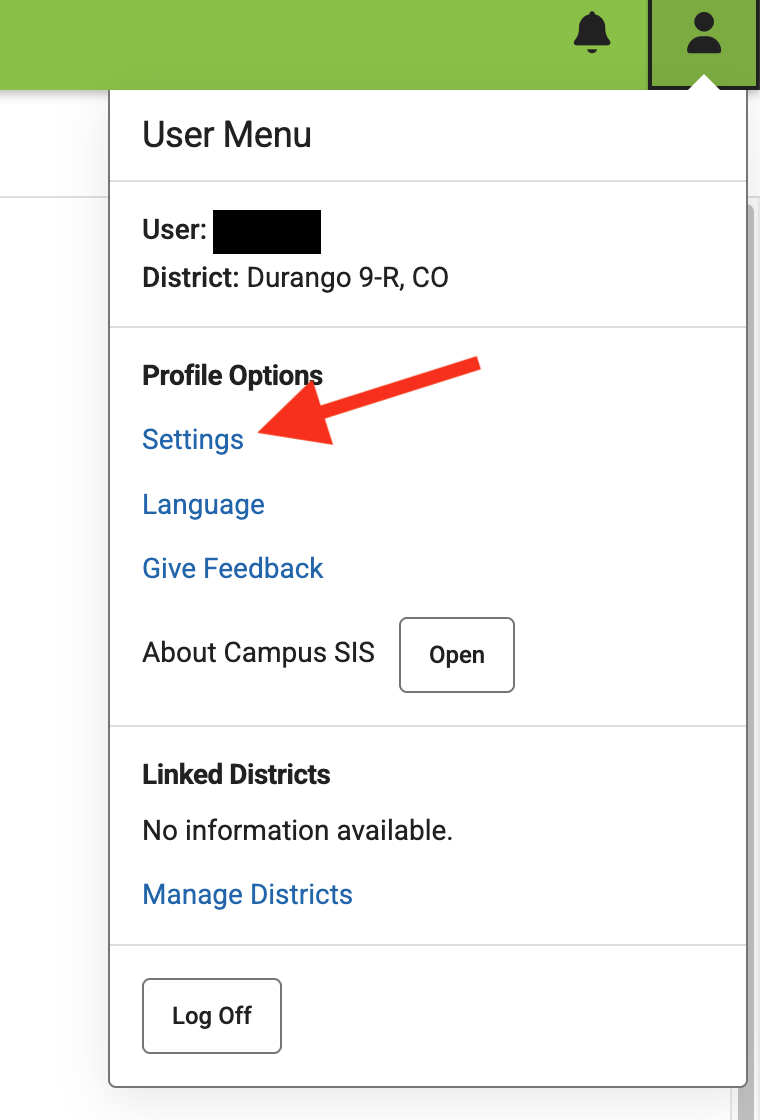
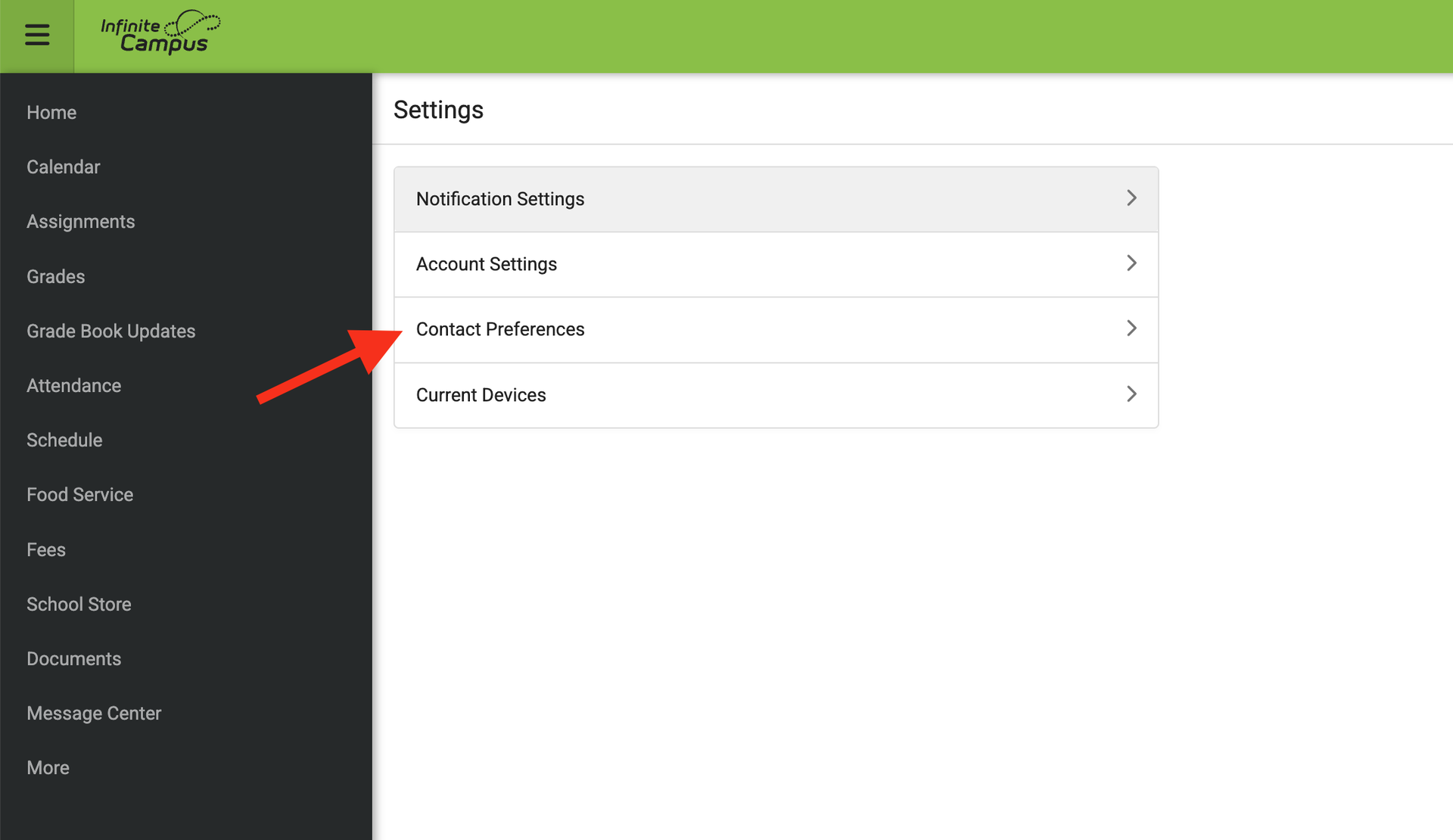
- Under Settings > Contact Preferences, you can directly edit your personal Cell Phone, Work Phone, Other Phone, Email Address, and Secondary Email Address.
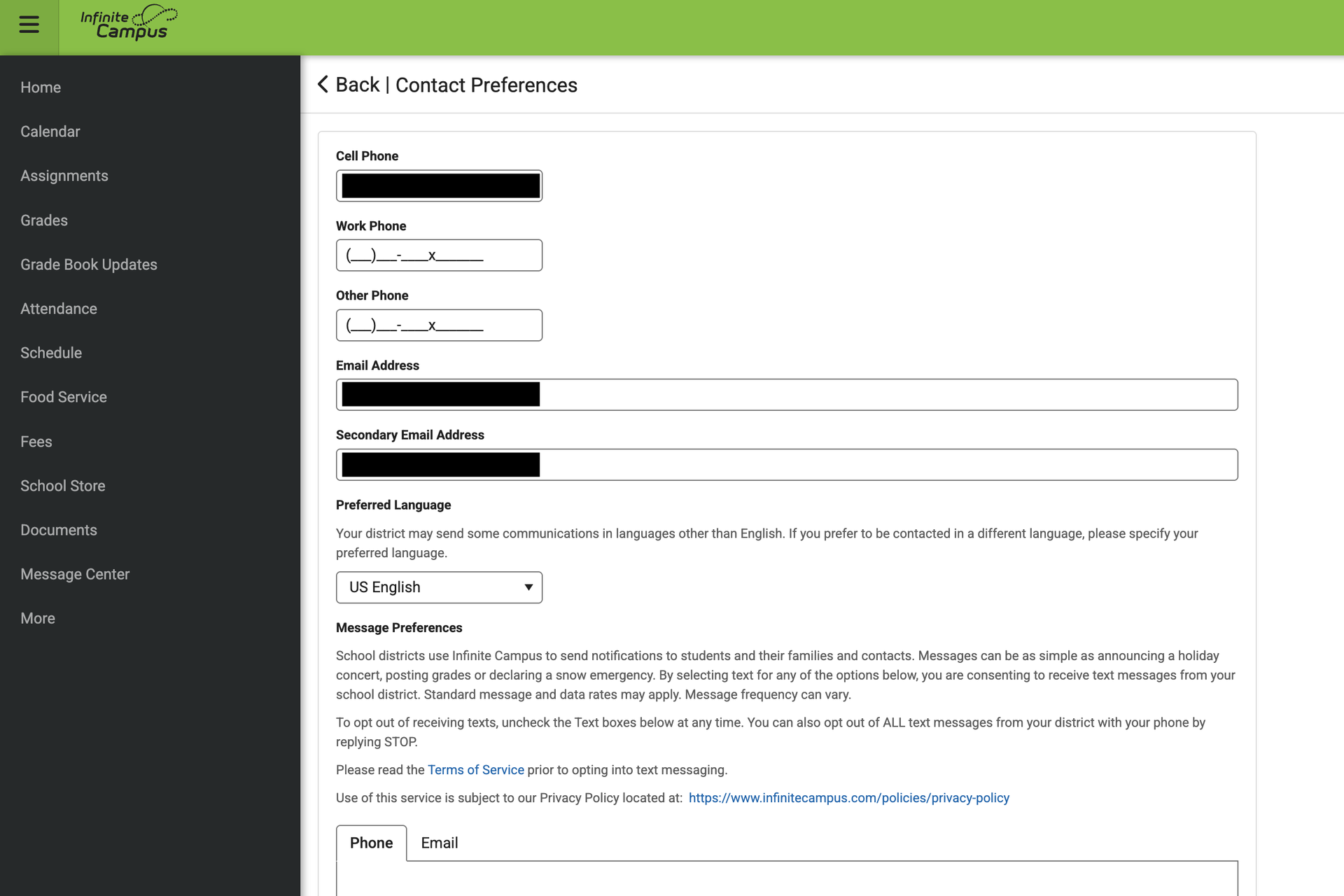
- Scroll down and make sure you have Voice and/or Text checked for Emergency and Priority notifications next to your Cell Phone so you receive immediate phone or SMS alerts for snow days and campus updates.
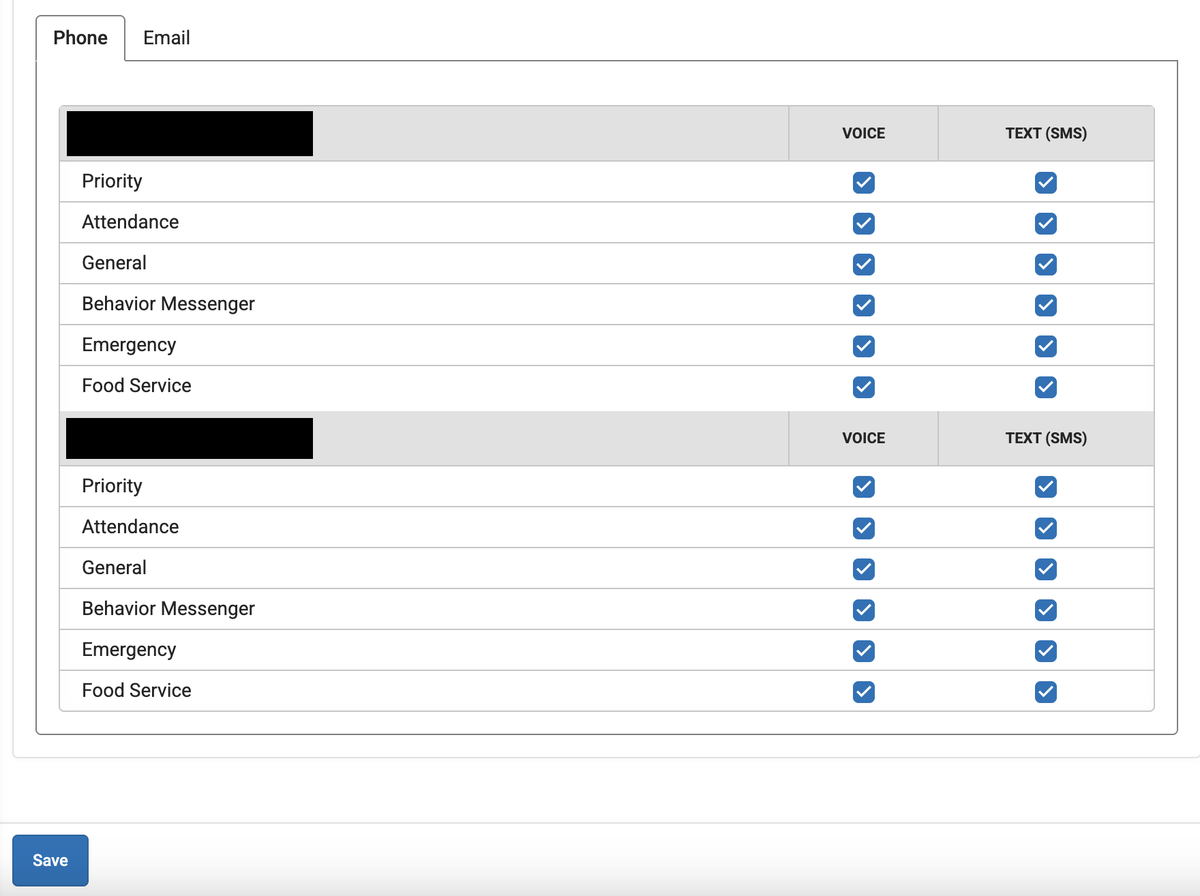
- Note: If your primary Household Phone number listed on this screen is incorrect, please contact your school front office to update it, as this field is locked in the portal.
- Under Settings > Contact Preferences, you can directly edit your personal Cell Phone, Work Phone, Other Phone, Email Address, and Secondary Email Address.
Need to make changes?
If you notice outdated household phone numbers, missing emergency contacts, or incorrect address information while reviewing your portal, please call or visit your school’s front office — our staff will be happy to update your records!